Stowra
Download

Stowra: Downloads, sorted. A Mac app that learns where your files go.

Stowra learns where your files go after you show it once.

Download for Mac Free · macOS 14+ · Apple Silicon & Intel · v0.2 · 2.2 MB

Show it once. It remembers.

There are no rules to write. Move a file where it belongs, the way you always do, and Stowra offers that place the next time a file like it arrives.

  1. You move a file once.Drag it into a folder in Finder, as you always do. Stowra notices and learns a route.
  2. The next one asks.A file like it lands in Downloads, and a small tag says where it belongs. One click moves it.
  3. Then it can run on its own.After five clean approvals, Stowra offers to move files like it automatically. You decide.

It learns from where a file came from (pexels.com → Footage), what type it is (.pdf → Finance), and numbered folders you keep (Episode 15 and its thumbnail). Try it:

Downloads1 file

invoice-november.pdf
→ Documents › Finance

Your foldersDrag, or tap the file then a folder

LEARNED.pdf → Finance
FinanceDocuments
ReceiptsDocuments
ClientsWork

A tap when you're busy. A board when you're not.

Tags

Each new file appears in the corner with where it's going. One click and you're back to work. Ignore it, and it waits on the board.
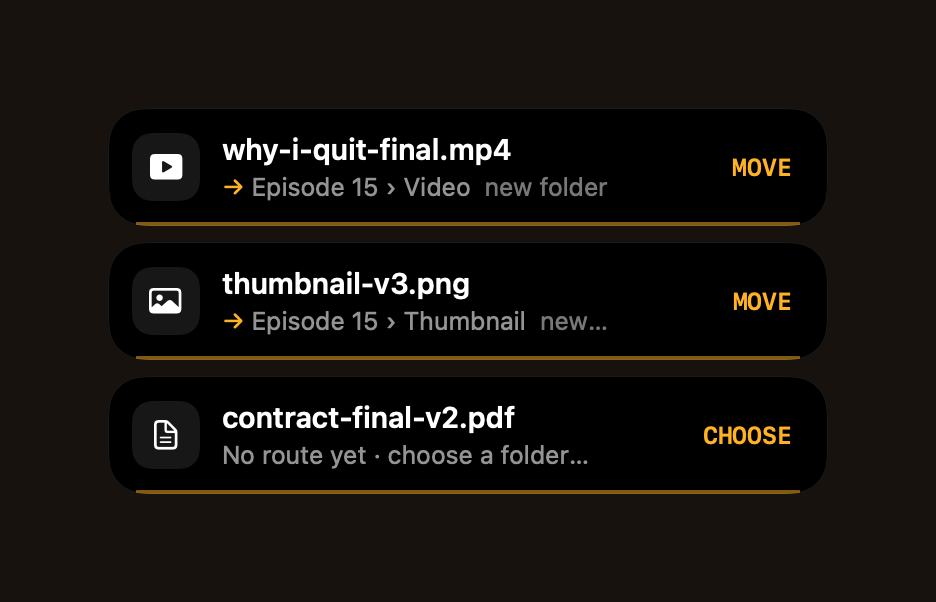
Stowra tags in the corner of the screen, each showing a file, its destination and a Move button

The departures board

Press ⌃⌥Space to see everything waiting, grouped by where it's headed and why. Move a batch, keep it, or archive it for later.
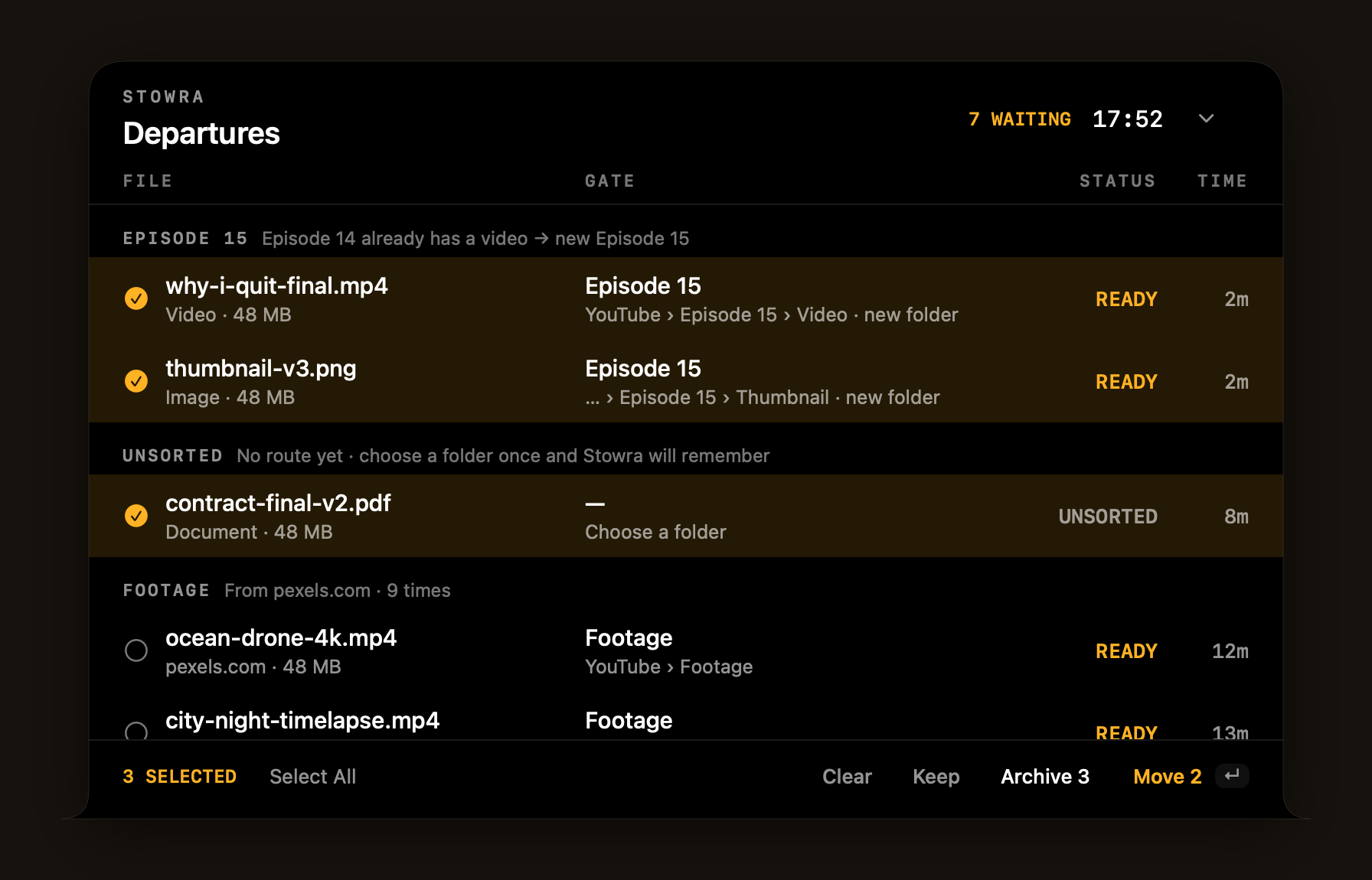
The Stowra departures board with three files selected, grouped under Episode 15 and Unsorted, with Keep, Archive and Move buttons

It understands numbered folders.

Keep Episode 12, 13 and 14? When a new video lands, Stowra makes Episode 15. The thumbnail that arrives with it goes to the same episode.

Episode 12

Videoep12-final.mp4
Thumbnailthumb-12.png

Episode 13

Videoep13-final.mp4
Thumbnailthumb-13.png

Episode 14

Videoep14-final.mp4
Thumbnailthumb-14.png

Episode 15New

Videowhy-i-quit-final.mp4
Thumbnailthumbnail-v3.png


The tidying you'd never get round to.

  • Safari — Oct 12 at 14.03.11.pngScreenshots you can find. Renamed after the app they show, filed by month, and searchable by the text inside them.Filed.
  • report (1).pdfDuplicate downloads. Identical to the file next to it, byte for byte.Suggests the Trash, and asks.
  • Figma-1.42.dmgInstallers you're done with. The app is already in Applications.Suggests the Trash, and asks.
  • photos.zipZips you've unpacked. The folder is already right there.Suggests the Trash, and asks.
  • 3 filesArchive for later. Not ready to decide? Put a batch aside in this month's archive.Archived.

Trash suggestions always ask and are never part of Move All. "Trash" means the Finder Trash, so nothing is gone until you empty it.

It earns your trust. You keep control.

Every route starts by asking. Nothing runs on its own until you say so, and anything it did can be put back.

  • New routeEvery route starts as Ask. Stowra suggests, you approve with a click.Ask.
  • 5 clean approvalsThen it offers Auto. Automatic moves still show a short tag with Undo.Auto.
  • Undo an auto moveThe route goes back to asking. One undo is enough to tell it the rule was wrong.Back to Ask.
  • Routes tabSet any route to Ask, Auto or Off, or send it somewhere else with Change Gate…Your choice.
  • Menu bar › PausePause for an hour, or until tomorrow morning. Files wait until you're back.Paused.
  • Right-click a fileKeep in Downloads to leave it be, or Choose Folder… to send it elsewhere and teach Stowra at the same time.Kept.
  • Old filesFiles already in Downloads are left alone until you choose Review older files.Waiting for you.
  • ~/DesktopThe Desktop is screenshots only by default, because people keep work there. You can change it per folder in Settings.Screenshots only.

Undo, wherever you are

Undo from the tag, the board, the Departed list, or the menu bar (Recent and Undo Last Move), or press ⌘Z on the board. A Move All batch undoes in one step. Undo works while the file is still where Stowra put it.
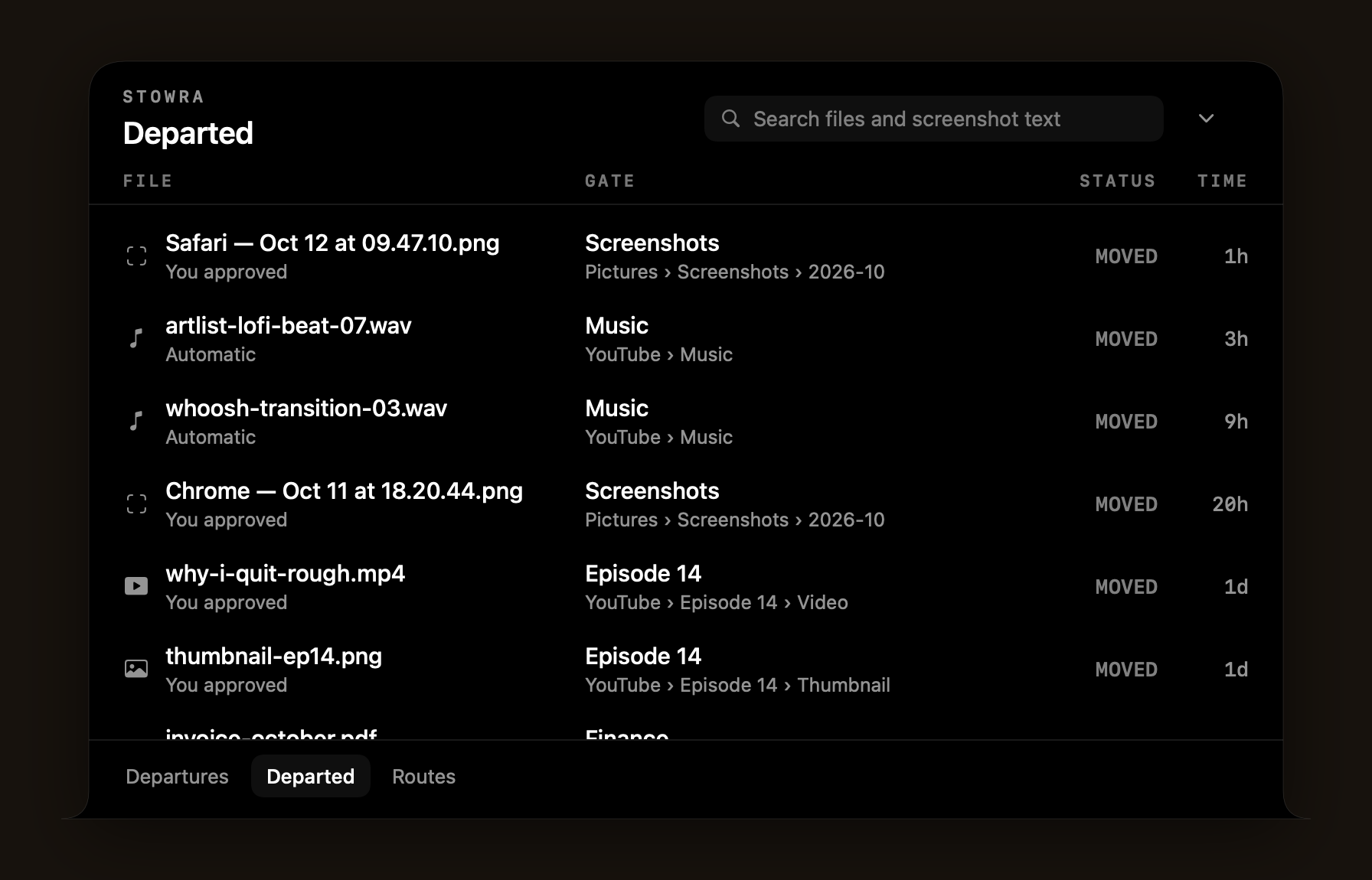
The Departed list on the Stowra board: recent moves, where each file went, and whether you approved it or it ran automatically

Your files, handled with care.

  • It never deletes."Trash" means the Finder Trash, and only you can empty it. Trash suggestions always ask, and are never part of Move All.
  • It never overwrites.If a name is taken, the file arrives as "name 2". Nothing is replaced.
  • No half-moved files.A move to another drive is copied, checked, and only then removed from Downloads. If it's interrupted, you never end up with half a file.
  • It stays out of system folders.Stowra refuses to file anything into macOS or app folders, whatever a route says.
  • Moves can be undone.From the tag, the board, Departed or the menu bar, as long as the file is still where Stowra put it.

Nothing leaves your Mac.

No account, no analytics, and no network connections from the app at all. Here is exactly what it reads and keeps.

WHAT IT KEEPS

One file, on your Mac

Everything Stowra knows is in ~/Library/Application Support/Stowra/state.json, readable only by your user account:

  • your routes and settings;
  • a history of moves: file names, folders and the sites files came from;
  • the text found in your screenshots, so you can search for them.

Reset Stowra… in Settings erases it. Copy Diagnostics in the Help menu copies counts and settings only, never file names, paths or screenshot text.

WHAT IT READS

Only what it needs to sort

  • Your home folder, for moves. To learn where you put files, it watches for moves, skipping Library, the Trash, Applications and developer caches.
  • Screenshots, on your Mac. Text inside screenshots (and only screenshots) is read with Apple's Vision framework. You can turn it off in Settings.
  • File contents, only for duplicates. It compares files to spot a download that's identical to one you already have.
  • App names in /Applications, to recognise installers of apps you already have.

The details are in the privacy policy.

Give every download a place.

Free, for macOS 14 Sonoma and later, on Apple Silicon and Intel Macs.

Download for Mac

Free · macOS 14+ · Apple Silicon & Intel · v0.2 · 2.2 MB

Not notarized by Apple yet, so the first open takes one extra step. See how to install.

Install in a minute.

Stowra isn't notarized by Apple yet, so macOS asks you to confirm it the first time. That's expected.

  1. Download and unzip.Double-click Stowra-0.2.zip in Downloads.
  2. Drag Stowra to Applications.Then open it from there.
  3. Confirm it once.macOS says it can't verify the app. Follow the steps for your macOS version below.
  4. Start Watching.A welcome card explains the idea. Press Start Watching and macOS asks for access to Downloads and Desktop (and Documents later, when a file goes there). Choose Allow.
  5. Find it in the menu bar.Stowra has no Dock icon. Look for its tray icon at the top of the screen, or press ⌃⌥Space to open the board.

REQUIREMENTS

System
macOS 14 Sonoma or later
Mac
Apple Silicon & Intel
Version
0.2
Price
Free
Download
2.0 MB
SHA-256
32d7c6d69fbfc1e8ae1364f52950b0d7ac11e681b46c7622849b910e82800844

MACOS 15 SEQUOIA AND LATER

Open Anyway

  1. When macOS says it can't verify Stowra, click Done.
  2. Open System Settings › Privacy & Security.
  3. Scroll down to "Stowra was blocked…" and click Open Anyway.
  4. Confirm, and enter your password if asked.

MACOS 14 SONOMA

Right-click, Open

  1. In Applications, right-click (or Control-click) Stowra.
  2. Choose Open.
  3. Click Open in the dialog.

You only do this once. After that, Stowra opens like any app.

Updating from an earlier version? Replace the old app in Applications. macOS may ask for folder access again, because each build is signed separately. Choose Allow.

Questions.

Is it really free?

Yes. There is no account, no trial and nothing to buy.

Does it work on Intel Macs?

Yes. Stowra is a universal app: it runs natively on Apple Silicon and Intel Macs with macOS 14 Sonoma or later.

Why does macOS say it can't verify the app?

Stowra isn't notarized by Apple yet. It's signed on the developer's Mac, not with an Apple Developer ID, so macOS asks you to confirm it the first time. The install steps show how, for macOS 14 and for macOS 15 and later.

Does it see my whole disk?

No. It sorts files in the folders you let it watch: Downloads, and screenshots on the Desktop by default. To learn where you put things, it also notices when you move a file somewhere in your home folder. It skips Library, the Trash, Applications and developer caches, and it never reads file contents except to spot duplicate downloads and the text in screenshots. macOS asks your permission before it can see Downloads, Desktop or Documents.

Where is it? I don't see it in the Dock.

Stowra lives in the menu bar, with no Dock icon. Look for its tray icon at the top of the screen, or press ⌃⌥Space to open the board. To start it with your Mac, turn on Open at Login in Settings.

What if it moves something to the wrong place?

Undo it from the tag, the board, the Departed list, or the menu bar under Recent or Undo Last Move. Undo works while the file is still where Stowra put it. If it was an automatic move, that route goes back to asking. You can also point a route somewhere else with Change Gate…, or turn it off.

Does it ever delete files?

No. "Trash" means the Finder Trash, which only you can empty. Trash suggestions (installers of apps you have, duplicate downloads, zips you've unpacked) always ask, and are never part of Move All.

Does it sort folders?

Not yet. Stowra sorts files only, so a folder in Downloads (an unzipped download, for example) doesn't get a tag.

How do I get updates?

Stowra doesn't update itself, because the app never connects to the internet. Choose Check for Updates… in Stowra's menu to open What's new on this site, then download the new version and replace the old one in Applications.

How do I uninstall it?
  1. Turn off Open at Login in Settings, if you turned it on.
  2. Quit Stowra from its menu bar icon.
  3. Drag Stowra from Applications to the Trash.
  4. Delete the folder ~/Library/Application Support/Stowra.

Your files stay exactly where they are.

How do I get in touch?

Email gagikhbiz@gmail.com, or choose Send Feedback… from the menu bar icon. If something went wrong, Copy Diagnostics in the Help menu gives you a summary to paste in, with no file names, paths or screenshot text.

What's new in 0.2.

You're looking at the current version, Stowra 0.2. There are no automatic updates yet: when a new version comes out, it's listed here. Download it and replace the old app in Applications.

  • Ignore listNever sort some files. Add an extension like .log or a name pattern like invoice-* in Settings.New.
  • PausePause a single folder, or everything until you resume, with your own keyboard shortcut.New.
  • KeyboardUse the board without the mouse. Arrow keys pick a row, Return acts on it, Space opens Quick Look.New.
  • RoutesBack up your routes, or take them to a new Mac. Export and Import are in Settings; every imported folder is checked first.New.
  • While quitFiles that arrived while Stowra was not running are noticed when it starts, instead of being treated as old files.New.
  • Big movesSee progress on the row for large moves to another drive, and cancel them.New.
  • Never overwritesNothing is replaced, even if a file appears mid-move. By default a name clash becomes "name 2". In Settings you can choose to skip it or be asked instead.Safer.
  • Other drivesSafe moves to other drives. Files are copied, checked, and only then removed from Downloads, so an interrupted move never leaves half a file.Safer.
  • Undo Last MoveUndo a whole Move All batch in one step, from the menu bar or with ⌘Z on the board.New.
  • First runA welcome card explains Stowra before macOS asks for folder access, and Stowra tells you if it can't see a folder and how to fix it.New.
  • Menu barRecent moves, Help, Send Feedback and Copy Diagnostics, right from the menu bar icon.New.
  • Failed movesA move that fails stays visible on the board with a plain reason, instead of flashing past.Fixed.
  • Intel MacsOne app for every Mac. Runs natively on Apple Silicon and Intel.New.
  • Screenshot textOnly screenshots are read for text, and you can turn it off in Settings.More private.
  • AccessibilityBetter VoiceOver labels and stronger contrast throughout the app.Fixed.